

Messing with scenery

By Gaiiden
· 1264 views
I've been spending all my spare hours these past two days painstakingly re-creating KEWR to match my photo-realistic ground scenery textures, using a program called FSX Planner. It's the first scenery manipulation I've ever done in Flight Simulator and I know there are a couple options out there to use when mucking about with airport and scenery files but this was the first one I came across when I went looking so I decided to start with it. I'll be using a different program to modify another airport to see which one I end up liking the most. This program has a few quirks, and I can't do things like drag-select or even ctrl-/shift-select multiple items to edit them at once, which is a bit annoying. Still, given that the documentation is pretty sucky overall (there are a few tutorials but no comprehensive manual, so a lot of property settings for objects I have to puzzle out on my own) I'm picking it up pretty quick.
The slowest part about it is that I need to make as many minor adjustments as I can, then recompile (which doesn't take long) and then re-load the scenery data into FSX (which does take 2-3 minutes). Only then can I see how well things have lined up, and use that as reference to make further tweaks. While the program does make it easy for you to capture a shot of a location via Google Maps satellite view and use it as a background image, they forgot to take into account the fact that satellites don't actually photograph image from directly above - at least, not all the time. Therefore when I loaded an image of EWR as a background although it aligned at first, the actual angle of the photo vs. my top-down view became readily apparent.
So in between going back and forth between sim and designer (I have FSX constantly running a window) and trying to figure out how to do some things as I build, things have been moving along a bit slowly, but are starting to pick up now that I'm understanding more. Here is what I've accomplished so far:
First, the default FSX scenery layout for KEWR:
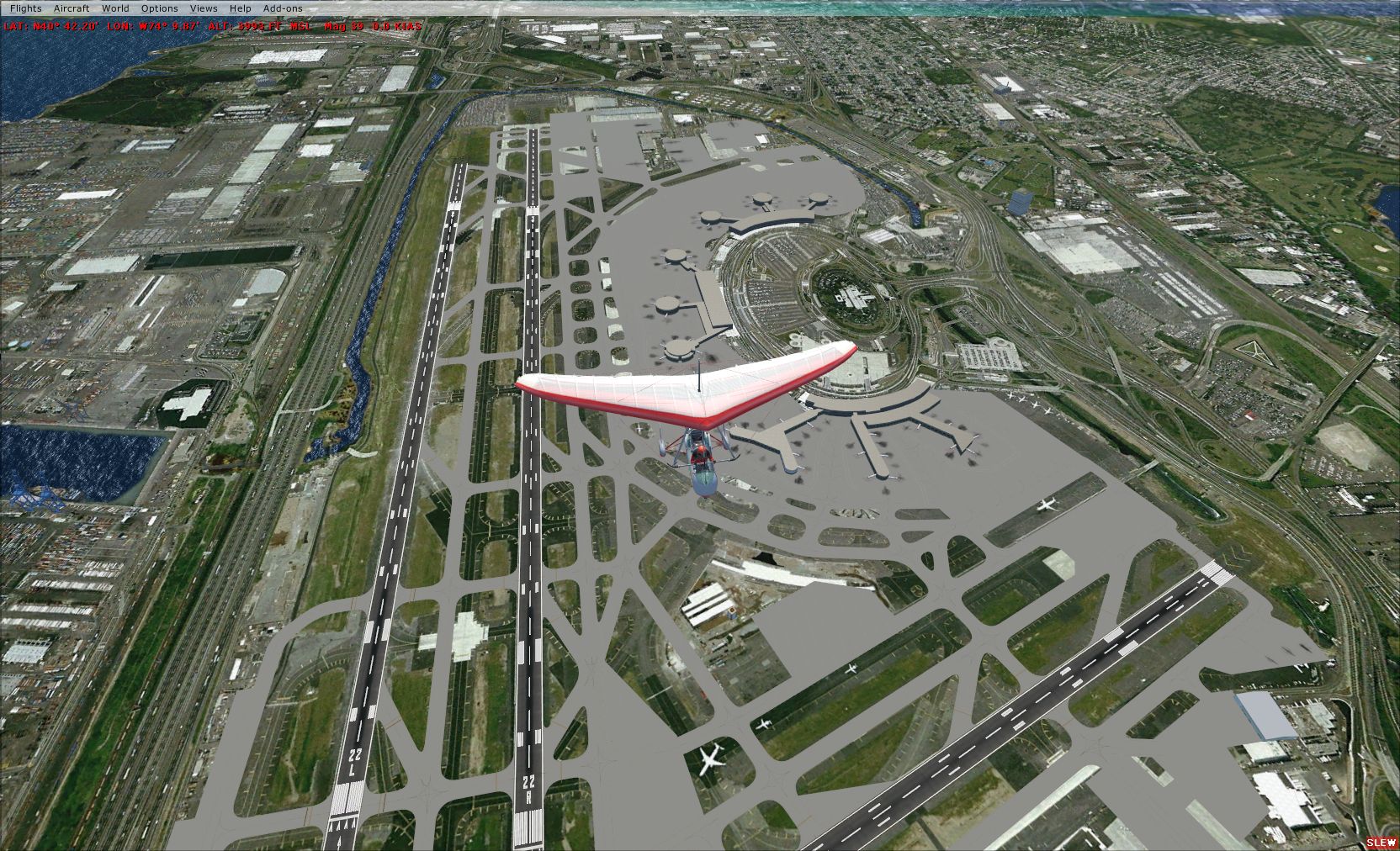
Note how the runways align well, but the taxiways are all way off, which makes things look pretty cluttered from the air. There are also incorrectly-placed aprons for parking that overlap improper scenery areas.
Now, the improved KEWR with aligned taxiways:
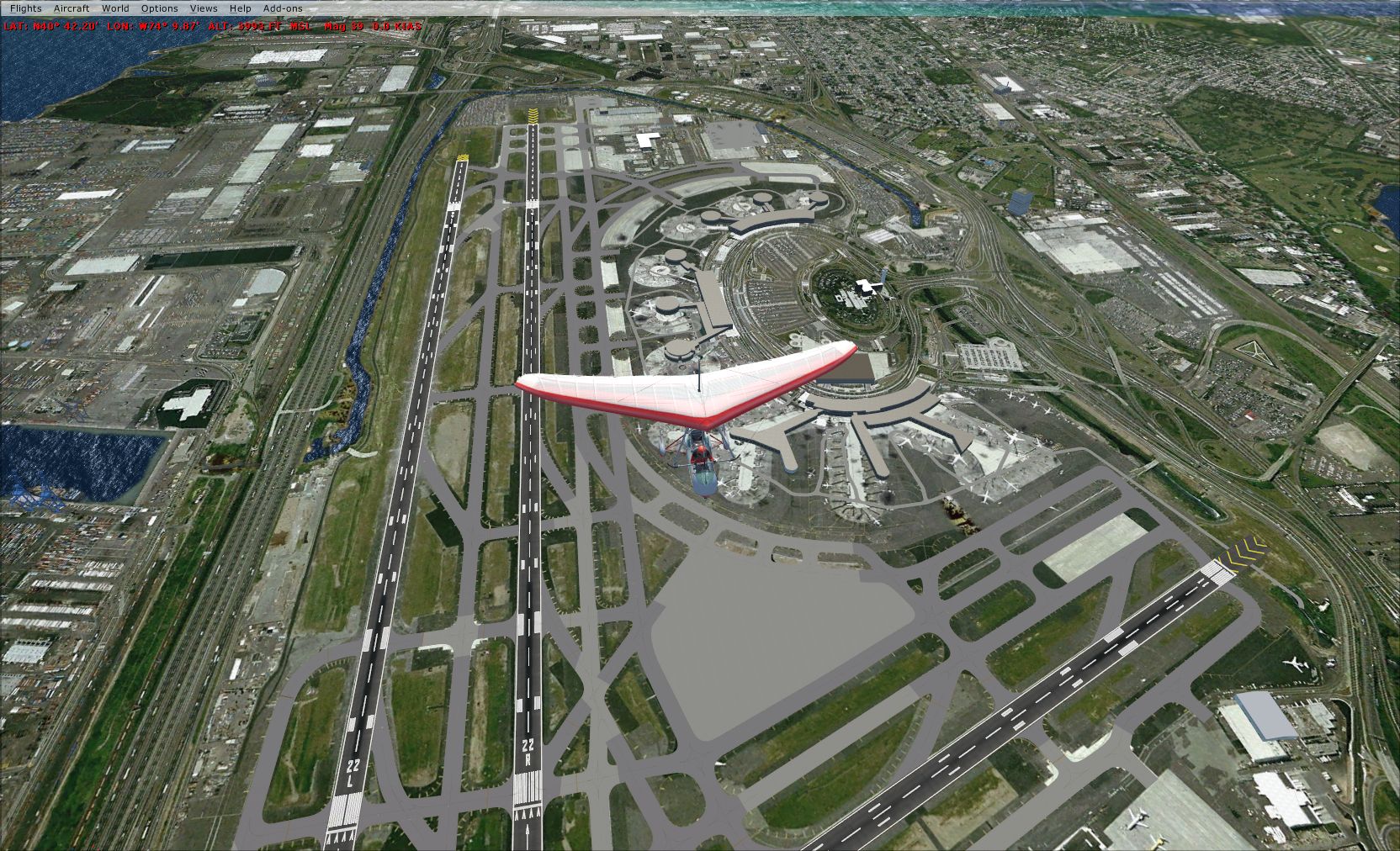
Not only are the taxiways aligned here, but the runways are the appropriate length and are sporting blast pads at the ends just like in real life (if you look at the default photo again, you'll notice them in the ground textures - look at the runway in the lower right). Also, you'll notice a change in the coloration of the taxiways - as in real life some are asphalt and some are concrete. Also, the photo-real ground textures get to stick out more in between the better-looking but still obviously computer-generated taxiways.
There's still plenty of work to be done, and more to learn. For example, I can't access the terminal buildings to reposition them appropriately. Further, there are several scenery buildings that appear when the scenery is set above Normal that are incorrectly placed as well. Regardless, I still need to complete the parking aprons, and taxiways for airport traffic to run on. Then I need to clean up some of the taxi intersections and make sure the lighting all looks okay.
Luckily I have all weekend to work on this - with Hurricane Earl bearing down on us this weekend I don't see myself doing much flying!!
Recommended Comments