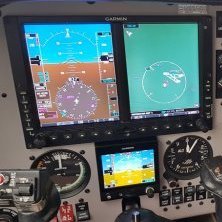
January 12, 20197 yr This is a tutorial on how to set up the GNS 530v2 to work with your Emuteq Garsim 530 hardware. I have the Realair Turbine Duke configured with the Emuteq and it works perfectly. This is the process I used to install it which is slightly different to the original install instructions from Emuteq. First, when P3D detects the presence of the Garsim530, it treats it as another controller. It assigns keystrokes to it, so you must go into the P3D Controller settings and delete all keystrokes assigned to the Garsim530. If you don't do this, when you twist a knob or push a button on the Garsim530, the view may change or the gear may toggle etc. In your favourite aircraft, you now need to set up the popup window for the GNS 530 Please consult the GNS530 User Manual if you need assistance setting up a popup window. The next task is to set up the key mapping. This is done via FSUIPC which sends the keystrokes from the Emuteq which are then read by the RXP GNS530. We need to edit two text files to achieve this, and then test them. Assuming a default installation, go to the following folder: C:\Users\<your user name>\Documents\Reality XP\GNS Simulation\FltSim You should see a file called RealityXP.GNS.ini - make a backup copy of this file before proceeding. Open RealityXP.GNS.ini using Notepad and replace all entries ending in "_1" in the [SHORTCUTS] section with: Spoiler CFLP_1 = ALT+SHIFT+F1 VFLP_1 = ALT+SHIFT+F2 CDI_1 = ALT+SHIFT+I OBS_1 = ALT+SHIFT+F4 MSG_1 = ALT+SHIFT+H FPL_1 = ALT+SHIFT+G VNAV_1 =ALT+SHIFT+F7 PROC_1 = ALT+SHIFT+F8 ENT_1 = ALT + SHIFT+F9 CLR_1 = ALT+SHIFT+F10 MNU_1 = ALT+SHIFT+F11 DTO_1 = ALT+SHIFT+F12 RUP_1 = CTRL+SHIFT+F1 RDN_1 = CTRL+SHIFT+F2 PWR_PUSH_1 = CTRL+SHIFT+F3 PWR_CCW_1 = CTRL+SHIFT+F4 PWR_CW_1 = CTRL+SHIFT+F5 VOL_PUSH_1 = CTRL+SHIFT+F6 VOL_CCW_1 = CTRL+SHIFT+F7 VOL_CW_1 = CTRL+SHIFT+F8 COM_PUSH_1 = WIN+N COM_OUTR_CCW_1 = CTL+SHIFT+F10 COM_OUTR_CW_1 = CTL+SHIFT+F11 COM_INNR_CCW_1 = CTL+SHIFT+F12 COM_INNR_CW_1 = ALT+SHIFT+A GPS_PUSH_1 = ALT+SHIFT+B GPS_OUTR_CCW_1 = ALT+SHIFT+C GPS_OUTR_CW_1 = ALT+SHIFT+D GPS_INNR_CCW_1 = ALT+SHIFT+E GPS_INNR_CW_1 = ALT+SHIFT+F Save RealityXP.GNS.ini This assigns keystrokes for the GNS530 actions. We now need to assign keystrokes for FSUIPC to read. Go to <your P3D folder>\Modules folder next. If you have run P3D once with FSUIPC you should find the file FSUIPC.cfg. Make a backup copy of this file Open this file in Notepad. There will be a section [JoyNames]. This is this section from my file: [JoyNames] AutoAssignLetters=No 0=T.Flight Stick X 0.GUID={A80AC290-F290-11E8-8005-444553540000}1=GarSim 530 1.GUID={404B9080-023F-11E9-8001-444553540000} Note the "Garsim 530" entry - it has been assigned the number 1. Depending on what controllers you have installed it may be a different number, make a note of what the assigned number is for your Garsim530. Look further in the file and find the [Buttons] section. If you don't have one, you can cut and paste the following section Spoiler [Buttons] PollInterval=25 ButtonRepeat=20,10 1=R0,32,C65607,0 -{ELEV_TRIM_DN}- 2=R0,36,C65615,0 -{ELEV_TRIM_UP}-3=P1,12,K112,25 -{Key press: alt+shft+F1}- 4=P1,0,K116,11 -{Key press: ctl+shft+F5}- 6=P1,13,K113,25 -{Key press: alt+shft+F2}- 9=P1,7,K122,11 -{Key press: ctl+shft+F11}- 10=P1,6,K121,11 -{Key press: ctl+shft+F10}- 11=P1,5,K65,25 -{Key press: alt+shft+A}- 12=P1,4,K123,11 -{Key press: ctl+shft+F12}- 13=P1,14,K78,40 -{Key press: win+N}- 14=P1,16,K73,25 -{Key press: alt+shft+I}- 15=P1,17,K115,25 -{Key press: alt+shft+F4}- 16=P1,18,K72,25 -{Key press: alt+shft+H}- 17=P1,19,K71,25 -{Key press: alt+shft+G}- 18=P1,20,K118,25 -{Key press: alt+shft+F7}- 19=P1,21,K119,25 -{Key press: alt+shft+F8}- 20=P1,10,K68,25 -{Key press: alt+shft+D}- 21=P1,11,K67,25 -{Key press: alt+shft+C}- 22=P1,8,K70,25 -{Key press: alt+shft+F}- 23=P1,9,K69,25 -{Key press: alt+shft+E}- 24=P1,15,K66,25 -{Key press: alt+shft+B}- 25=R1,27,K113,11 -{Key press: ctl+shft+F2}- 26=R1,26,K112,11 -{Key press: ctl+shft+F1}- 27=P1,25,K123,25 -{Key press: alt+shft+F12}- 28=P1,24,K122,25 -{Key press: alt+shft+F11}- 29=R1,23,K121,25 -{Key press: alt+shft+F10}- 30=P1,22,K120,25 -{Key press: alt+shft+F9}- 31=P1,29,K114,11 -{Key press: ctl+shft+F3}- 32=P1,28,K117,11 -{Key press: ctl+shft+F6}- 33=P1,1,K115,11 -{Key press: ctl+shft+F4}- 34=P1,3,K118,11 -{Key press: ctl+shft+F7}- 35=P1,2,K119,11 -{Key press: ctl+shft+F8}- Disregard items 1 and 2 in my file as I use those to assign my trim controls. The remaining bold entries map the keystrokes we assigned to the RXP GNS functions earlier. Ensure the numbers of each entry are sequential to prevent problems - if you already have entries in this section, you can simply append them to the existing list and amend the numbers to continue the numbering sequence. Note the "P1" and "R1" entries in my file. The "1" is the number FSUIPC assigned to my Garsim 530. If you have a different number assigned to your Garsim530 then replace the "1" with the appropriate number from your FSUIPC.cfg file. Once you have edited FSUIPC.cfg, save the file. Now is a good time to test whether the key mapping works. Start P3D. Go to Add Ons -> FSUIPC. In the FSUIPC interface, click the "Buttons + Switches" tab. Press the ENT key on the Emuteq and it should display the corresponding keystroke you edited into the RealityXP.GNS.ini (ENT_1 = ALT + SHIFT+F9) file as shown: You can work your way through each button on the Emuteq and cross check with the RealityXP.GNS file to ensure each one displayed is correct. This ties the GNS functions to the FSUIPC key presses. That successfully done, all that remains is to set up the aircraft panel.cfg file. Go to your favourite aircraft folder. If everything is set up correctly you should find another RealityXP.GNS.ini file which contains your configuration options for the installed GNS. Make a backup copy of your RealityXP.GNS.ini file The complete contents of my file for the [GNS_530_1] section are listed below. These contain a lot of my own preferred settings, but the important one is the bolded [GNS_530_1.NO_BEZEL] section which removes the RXP GNS bezel. You can change any other settings in this file by referring to the GNS User Guide. Spoiler [GNS_530_1] ; is the master device if true. MasterDevice = true ; selects COM/NAV Radios '1' or '2'. RadiosPair = 1 ; uses computer time if true, simulator time otherwise. ComputerTime = false ; integral lighting percent (0 to 100) or index (-1) (using rxp.panel.rheostat_screen) Rheostat.Display = 100 ; integral lighting percent (0 to 100) or index (-1) (using rxp.panel.rheostat_integral) Rheostat.Buttons = 75 ; connects GPS to Autopilot if true. LinkOto = true ; connects GPS to HSI if true. LinkHsi = true ; connects GPS to HSI course motor if true. LinkCrs = true ; connects GPS to OBS input if true (LinkHsi/OBS or AutoNavSource/OBS) (NB: HSI/OBS = NAV1 OBS). LinkObs = true ; connects GPS to VOR if true. LinkVor = true ; connects CDI key to NAV/GPS switch if true. AutoNavGps = true ; selects VLOC NAV '1' or '2'. '0' selects same source as 'RadiosPair'. AutoNavSource = 0 ; sets device power source: ; ALWAYS_ON,AVIONICS_ON,PANEL_ON,BUS_MAIN,BUS_AVIONICS,BUS_BATT,BUS_HOTBATT,BUS_1,BUS_2,BUS_3,BUS_4 PowerSource = AVIONICS_ON ; connects GPS to Shadin Air Data computer if true. UseAirData = true ; connects GPS to Shadin Fuel Data computer if true. UseFuelData = true ; connects GPS to RYAN 9900BX if true. UseRyanTcad = false ; sets TCAD sound alerts volume in percent: 0 to 100. RyanTcadVolume = 50 ; connects GPS #1 to GPS #2 if true (both required). UseCrossFill = true ; enable device failures if true. UseFailures = false ; uses Simulator GPS commands if true. UseSimGpsCmds = true ; updates Simulator GPS flight plan if true. LinkSimGps = true ; saves the active route as a Simulator flight plan if true. AutoSavePln = false ; use legacy mouse (left CCW, right CW, middle Push) (override instances settings) UseAltMouse = true ; use legacy GNS WAAS 3rd party aircraft panel variables (L:Vars). UseLegacyVars = false ; sets device power knob switch mode: NONE,DEFAULT_ON,DEFAULT_OFF PowerKnob = NONE ; sets fuel type: AVGAS,JETA,JETB FuelType = AVGAS ; sets TAWS type: TERR,TAWS TawsMode = TERR ; sets TAWS surface: HARD,HARD_SOFT,WATER,ANY TawsSurface = HARD_SOFT ; TAWS minimum runway length (feet) TawsMinLength = 40 ; HSI lateral deviation scale factor. CdiScale = 1 ; HSI vertical deviation scale factor. GsiScale = 1 ; sets master sound volume in percent: 0 to 100. MasterVolume = 100 ; mute sound when simulator window looses focus if false. NoAudioFocus = false ; sets trainer process CPU: 1 to 32 (0: last core, -1: automatic). CpuAffinity = -1 ; cdi/obs: CDI Key AFMS.cdi_key = ; cdi/obs: Selected Course for GPS AFMS.sel_crs_gps = ; cdi/obs: Selected Course for VLOC AFMS.sel_crs_vloc = ; cdi/obs: V-Flag State (1: declutter AFMS.v_flag_declutter = ; main: GPS Selected (0: prompt, 1: auto) AFMS.gps_selected = 1 ; main: COM Presets AFMS.com_presets = ; connects to: 'PFC_STACK','PFC_430','PFC_530' or any '#PID' (#D002 for PFC_430) ; no value connects to first found, 'OFF' disables connection. HardwareDevice = ; hardware selector number or -1 to disable. HardwareIdx = -1 ; right mouse button on the screen toggles popup window by ident (ex: GPS_PANEL or 225). popright = [GNS_530_1.DEFAULT] ; show screen only gauge if true. nobezel = false ; screen only border size (pixels). border.size = 0 ; screen only border color (#RGB or #RGBA). border.rgba = #000000 ; display mouse tooltips if true. tooltips = false ; enable mouse clickspots if true, disable if false. usemouse = true ; enable alternate click-spots (left CCW, right CW, middle Push) if true. usealtmouse = true ; auto-resize dimension (width,height) refsize = ; left mouse button on the screen toggles popup window by ident (ex: GPS_PANEL or 225). popleft = ; right mouse button on the screen toggles popup window by ident (ex: GPS_PANEL or 225). popright = 15531 ; adjust brightness (0 to 100) brightness.bezel = 100 ; offset brightness (-100 to +100) brightness.screen = 0 ; connects GPS #1 to GPS #2 if true (both required). UseCrossFill = true [GNS_530_1.NO_BEZEL] ; show screen only gauge if true. nobezel = true The last step is to edit your aircraft's panel.cfg file. My entire panel.cfg file is below, with the highlighted entries being the ones of interest. I configured my Duke with 2 popup windows for a 530/430 stack, hence the [Window01] and [Window02] entries. Make a back up copy of your panel.cfg before editing Spoiler [Window Titles] Window00=Main PanelWindow01=Reality XP GNS Unit 1 (managed) Window02=Reality XP GNS Unit 2 (managed) [Window00] file=2D_Help.bmp size_mm=1024, 95 position=6 BACKGROUND_COLOR=0,0,0 visible=1 ident=MAIN_PANEL [VCockpit01] size_mm=1024,1024 pixel_size=1024,1024 texture=$RAS_Duke_CFG background_color=1,1,1 gauge01=Config!Options, 1020, 1023, 1, 1 gauge02=Config!RealView, 1021, 1023, 1, 1 gauge03=Config!RadioLayout, 1027, 1023, 1, 1 gauge04=RASDuke!InitVars, 1022, 1023, 1, 1 gauge05=RASDuke!1hzCode, 1023, 1023, 1, 1 gauge06=RASDuke!2hzCode, 1024, 1023, 1, 1 gauge07=RASDuke!18hzCode, 1025, 1023, 1, 1 gauge08=RASDuke!NavCom1, 1, 2, 509, 61 gauge09=RASDuke!NavCom2, 1, 64, 509, 61 gauge10=RASDuke!ADF, 4, 127, 332, 49 gauge11=RASDuke!Xpndr, 7, 243, 305, 57 gauge12=RASDuke!Autopilot, 5, 177, 292, 62 gauge13=RASDuke!DME, 4, 305, 256, 46 gauge14=RASDuke!KA285_Annun, 512,2,337,108 gauge15=RASDuke!Annunciator_Turbine, 516, 111, 226, 245 gauge16=RASDuke!Moritz_LCD, 808, 133, 214, 259 gauge17=RASDuke!Fuel_Qty_LCD, 410, 128, 105, 86 gauge18=RASDuke!Master_Warn, 893, 1, 130, 129 // =============================================================================== // IMPORTANT - 'gauge19'. 'gauge20, 'gauge21', and 'gauge22' BELOW CAN BE OVERWRITTEN // BY THE CONFIG PANEL. PLEASE KEEP THIS IN MIND WHEN MANUALLY EDITING THIS FILE // IF YOU WANT TO CHANGE THE GPS ENTRIES AND DON'T WANT THEM OVERWRITTEN IN ANY // CIRCUMSTANCE THEN CHANGE THE GAUGE NUMBERS. EG - CHANGE 'gauge 19' TO 'gauge22' // =============================================================================== gauge19=rxpGNS2!GNS_530_1, 1,660,504,364 gauge20=rxpGNS2!GNS_430_2, 1,448,504,211 gauge21=RASDukeTv2_Sound!Sound, 1,1,2,2, \Sound\RASDukeTv2_Sound.ini gauge22=RASDuke!Sound_Manager, 1,1,3,3 gauge23=RASDuke!Pressurisation, 1024, 1023, 1, 1 gauge24=Config!ModelOptions, 1020, 1023, 1, 1 Day=255,255,255Night=225,117,89Luminous=200,200,101 [Default View]X=0Y=0SIZE_X=8192SIZE_Y=6144 [Window01]size_mm=100,100window_pos=0.744792,0.000000window_size=0.255208,0.337748visible=0always_visible=0zorder=99background_color=0,0,0ident=15531gauge00=rxpGNS2!GNS_530_1, 0, 0,100,100, NO_BEZEL [Window02]size_mm=100,100window_pos=0.744792,0.337748window_size=0.255208,0.194891visible=0always_visible=0zorder=99background_color=0,0,0ident=15432gauge00=rxpGNS2!GNS_430_2, 0, 0,100,100 [Window01] relates to the GNS_530 for my Emuteq set up. Save your panel.cfg file. Now, you can start P3D and load your aircraft. The popup GNS530 should come up with the screen only without the bezel. You can then undock it and move over to your Emuteq screen. Resize it as required to fit. Save the scenario and the GNS should load up onto the Emuteq screen ready for use next time you load the scenario. I hope this works for you. PM me with any questions. I can only try and support the setting up of the Emuteq, not support questions relating to the RXP, P3D, file editing etc. Remember to make back up copies of any files prior to editing. I can't be held responsible if you lose files for failure to backup, and any changes you make to your setup or files, you do so at your own risk. Following the instructions in this post acknowledges your acceptance of these conditions. I will amend this post if needed in order to make it clearer. Good luck and enjoy using your Emuteq hardware with the wonderful RealityXP GNS. My thanks and acknowledgment to Jean-Luc for his magnificent creation as well as the awesome support for his product. Edited January 12, 20197 yr by RXP Edited for formatting; Edited file name (RXP) David Porrett


Archived
This topic is now archived and is closed to further replies.