Skip to content
View in the app

A better way to browse. Learn more.

The AVSIM Community

A full-screen app on your home screen with push notifications, badges and more.

To install this app on iOS and iPadOS
  1. Tap the Share icon in Safari
  2. Scroll the menu and tap Add to Home Screen.
  3. Tap Add in the top-right corner.
To install this app on Android
  1. Tap the 3-dot menu (⋮) in the top-right corner of the browser.
  2. Tap Add to Home screen or Install app.
  3. Confirm by tapping Install.

Another quick qeustion related to GEPRO

Featured Replies

Hello, After my gepro textures are installed to match the weather, Can I close the gepro menu or do i have to keep it minimised while flying to keep the textures installed for my flight?p.s sorry about the double post, i hit the buttton twice by accident.Thanks

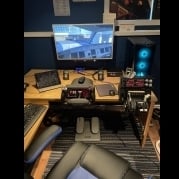
 Intel I7 12700KF / 32 GB Ram-3600mhz / Windows 11 - 64 bit / NVIDIA GeForce RTX 3060TI / 32" Acer Monitor, Honeycomb alpha/bravo, CH rudder pedals, Tobii 5, Buttkicker, Logitech radio panel. 

  • Commercial Member

You can close it, those are the textures you'll see in the sim from now on until you re-open GEPro and install another set (or revert to default). Other addons may also overwrite these textures, such as BEV, FSScene, etc.Jim

Create an account or sign in to comment

Account

Navigation

Search

Search

Configure browser push notifications

Chrome (Android)
  1. Tap the lock icon next to the address bar.
  2. Tap Permissions → Notifications.
  3. Adjust your preference.
Chrome (Desktop)
  1. Click the padlock icon in the address bar.
  2. Select Site settings.
  3. Find Notifications and adjust your preference.