Skip to content
View in the app

A better way to browse. Learn more.

The AVSIM Community

A full-screen app on your home screen with push notifications, badges and more.

To install this app on iOS and iPadOS
  1. Tap the Share icon in Safari
  2. Scroll the menu and tap Add to Home Screen.
  3. Tap Add in the top-right corner.
To install this app on Android
  1. Tap the 3-dot menu (⋮) in the top-right corner of the browser.
  2. Tap Add to Home screen or Install app.
  3. Confirm by tapping Install.
Message added by Poppet

Moderators Note

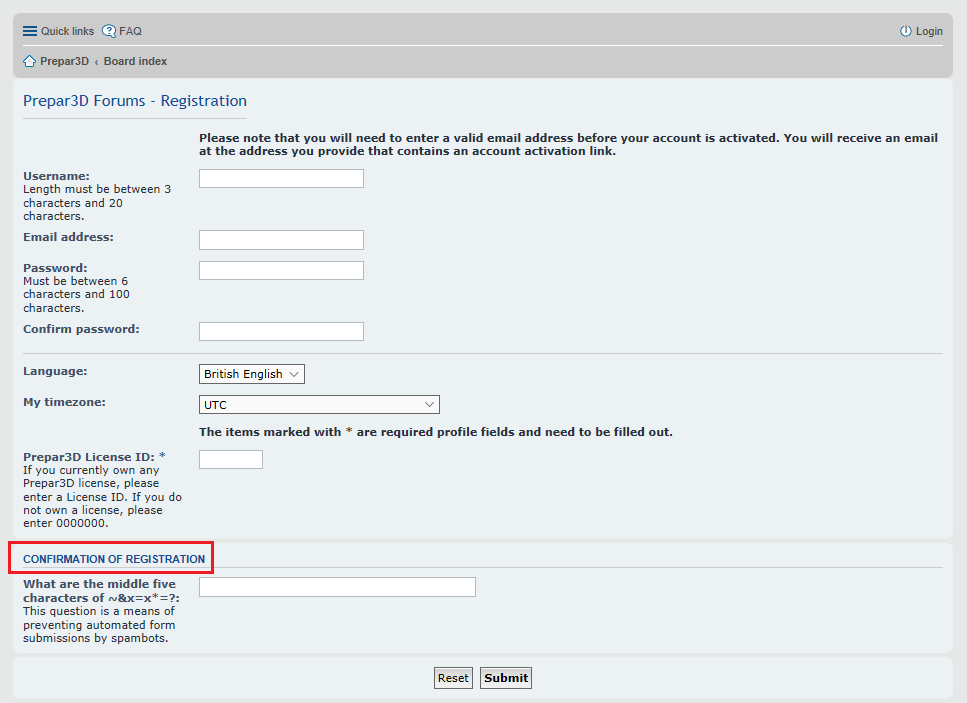
When registering on the Lockheed Martin Forums you will be prompted to answer one Spambot Countermeasure question   

In the bottom box for  "Confirmation of Registration"  you will be required to answer only one of three Questions to complete the registration 

Here are the 3 Questions and Answers                                                                             


1) What are the middle five characters of   ~&x=x*=?:                                                

Answer    &x=x*


2) What are the middle five characters of   x3z!&!z3x?: 

Answer    z!&!z  


3) What are the last seven letters of the program name   Prepar3D?:

Answer    repar3d

Unable to register on the Lockheed Martin Prepar3D Forum

Featured Replies

10 hours ago, Poppet said:

Hello

I have Included a Note at the top of this Topic regarding the "Confirmation of Registration"  Question's 

Hello Poppet

He reviewed all your content and I appreciate it very much.

Archived

This topic is now archived and is closed to further replies.

Account

Navigation

Search

Search

Configure browser push notifications

Chrome (Android)
  1. Tap the lock icon next to the address bar.
  2. Tap Permissions → Notifications.
  3. Adjust your preference.
Chrome (Desktop)
  1. Click the padlock icon in the address bar.
  2. Select Site settings.
  3. Find Notifications and adjust your preference.